
What Actually Leaves Your Mac: Screenshots, OCR Text, and the AI Call
A precise walkthrough of Kloy's data pipeline — what stays on-device, what goes out for AI classification (including masked OCR when Screen Analysis is on), how sensitive apps are skipped before capture, and how to verify all of it yourself.
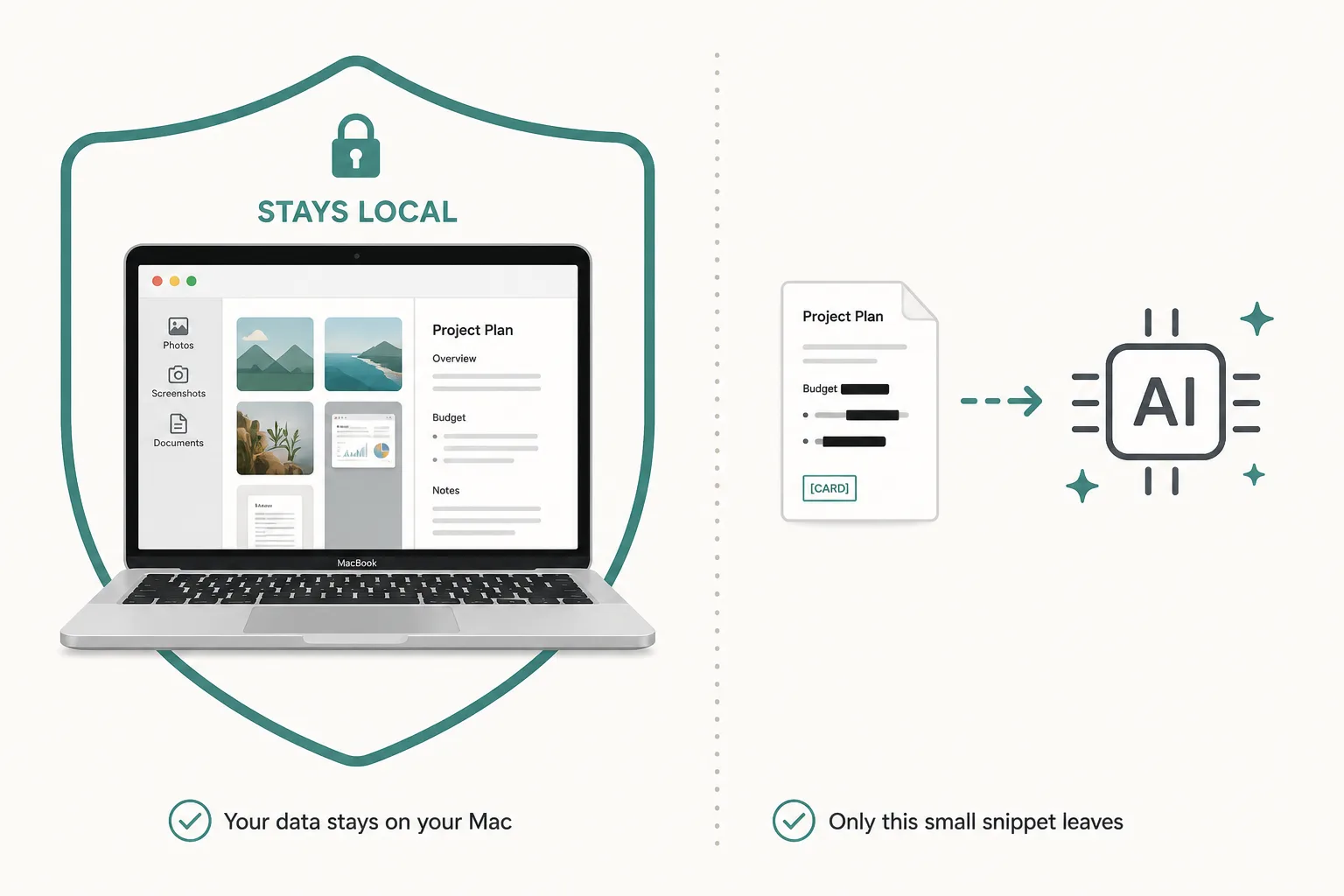
"Local-first" is easy to say and easy to overclaim. The skeptical version of the question — the one that shows up in every Reddit thread about screen-tracking tools — is more specific: if an AI classifies my screen activity, then something from my screen is going to an AI. What exactly? And what happens when a credit card number or a password is on that screen? This page answers that question at the pipeline level, including the parts that make the honest answer more nuanced than a slogan.
The short version
Screen Analysis is off by default. With it off, no screenshots are taken and classification uses app metadata (and the non-image fields below) only.
When Screen Analysis is on, screenshots still never leave your Mac. Capture and OCR run on-device; the sharp image is discarded after OCR. What goes off-device for classification is a structured prompt that can include a masked OCR text snippet, the app name and window title, the active browser URL, your project and task text, a short recent activity flow, and idle/click signals (not keystroke contents). Before any OCR text leaves, personal data in it is replaced with tokens — and screens that look sensitive (banking, passwords, payments, identity, medical) are skipped before capture when the gate succeeds, so there is often no snippet to send in the first place.
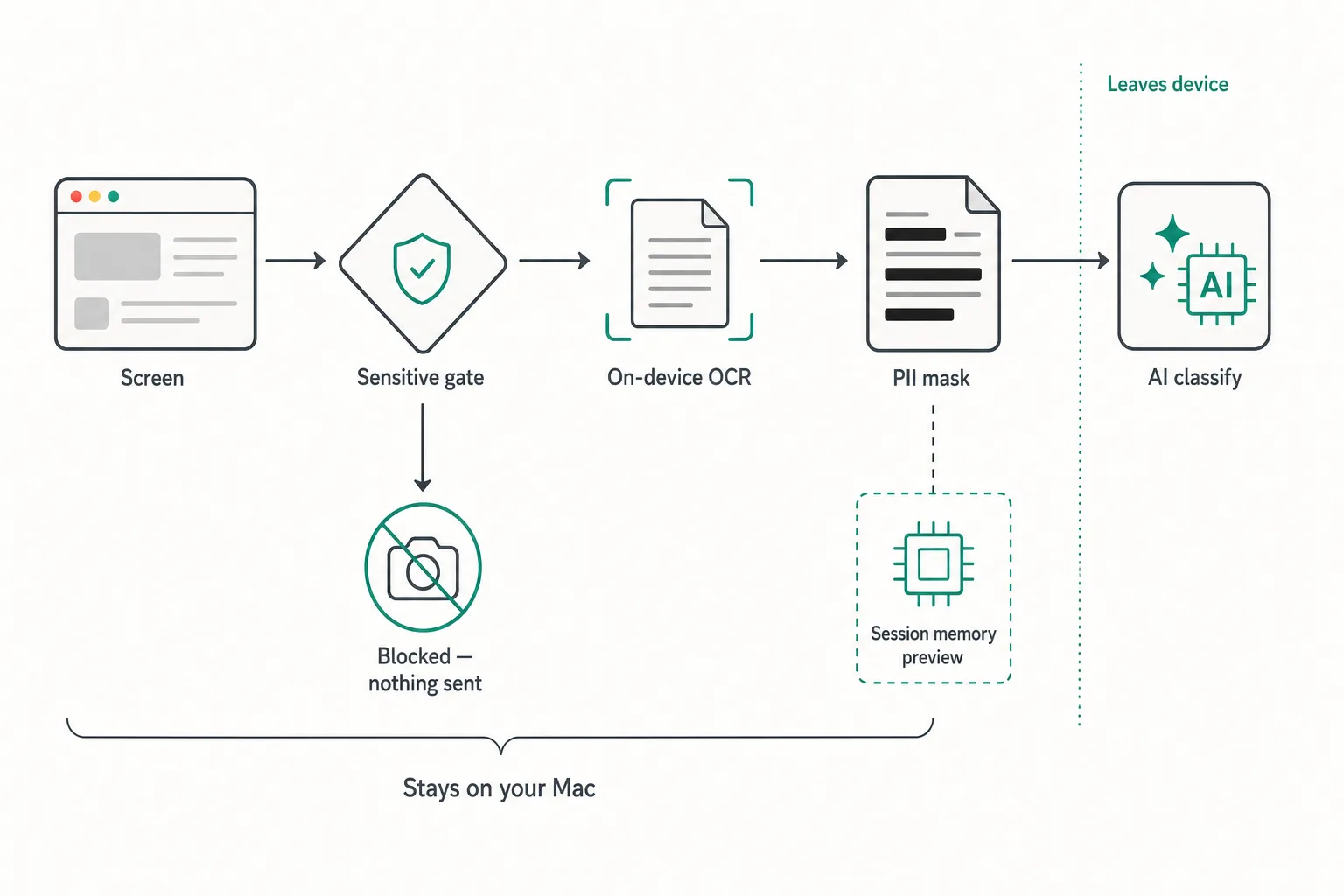
Step 0: sensitive apps are skipped before anything is captured
Before Kloy takes a screenshot (Screen Analysis on), two layers run:
- Your exclusion list in Settings — checked first, stored only on your Mac.
- AI sensitive-surface gate — sends only the app name and window title (no OCR, no image) and decides whether the surface looks like banking, password manager, payment/checkout, identity, medical, or other. If yes, the pipeline stops: no screenshot, no OCR, no classification call. The activity still appears in your local timeline as a protected app, so the record is honest about the gap.
Honest caveat: if the gate times out or errors, capture currently continues and relies on PII masking (fail-open). That is a deliberate availability tradeoff, not a claim of perfect pre-capture blocking.
Step 1: capture and OCR stay on-device
For screens that pass the gate, capture and text extraction run entirely on your Mac using Apple's on-device Vision OCR. The sharp capture is discarded after OCR; if you keep previews enabled, only a privacy-blurred thumbnail is stored locally for your own review. No image — sharp or blurred — is ever uploaded.
Step 2: personal data is masked before the text leaves
The OCR text is redacted locally before anything else touches it: checksum-validated card numbers become [CARD], Korean resident registration numbers become [RRN], emails and phone numbers become [EMAIL] and [PHONE], and any line carrying password/OTP-style labels is dropped whole as [REDACTED]. This masked version is the only version that exists downstream — it's what the AI call sees, and it's what your local activity log stores. The unmasked OCR text is never persisted and never transmitted.
An honest caveat belongs here rather than in fine print: pattern-based masking is never 100%. A sensitive number in an unusual format, or sensitive prose with no recognizable pattern, can get through. That's precisely why the sensitive-app gate runs first — masking is the second layer, not the only one.
Step 3: one classification call — full payload, nothing retained as raw OCR
A classification call returns a category, a relevance score, and a one-line reason. The prompt is used for that call and is not stored by Kloy as a permanent raw-OCR archive — what persists is the derived result, on your Mac. (We may log usage metadata such as provider, model, and token counts for billing and reliability.)
Beyond masked OCR (when Screen Analysis is on), the call can also include:
- App name and window title
- Active browser URL
- Your project and task text (so activity can be matched to the project you care about)
- A short recent activity flow (a handful of prior labeled activities)
- Idle / click signals — not the contents of keystrokes
Your report is built from derived local results, which is why a shared report contains reasoning and numbers but never raw screen text or screenshots.
Verify it instead of trusting it
Every activity in the Performance log has a "Sent for AI analysis" section showing the redacted OCR screen text that was included in that classification call — or a protected-app marker if the capture was skipped. The preview shows the screen text (not the full system prompt, project list, or telemetry). Open a banking app, then check the log: you'll see the block, not the content. Type a test card number in a notes app: the preview shows [CARD], not digits.
One deliberate design choice: that preview lives in app memory only. It's never written to disk, and it clears when Kloy restarts. Keeping a permanent on-disk archive of everything sent to the AI would itself be a privacy liability — so transparency is available for the session, and retention for that preview is deliberately zero.
What this does and doesn't claim
It doesn't claim your machine is unhackable, that OCR masking is perfect, that the sensitive gate never fails open, or that a determined person couldn't photograph their own screen. It claims something narrower and checkable: Screen Analysis is opt-in; screenshots stay local; sensitive surfaces are skipped before capture when the gate succeeds; outbound classification data is inspectable for the OCR portion; and nothing raw is retained server-side as an OCR archive. For how those properties feed into reports a client can trust, see the report trust FAQ, the verified public link explainer, and the Privacy Policy — or download Kloy and watch the log yourself.
Ready to see it in your own work?
Join the waitlist and we'll email you when Kloy opens.